CyberEntity Logging
CyberEntity Logging helps Unity teams turn noisy debug output into clear, actionable diagnostics.
Designed for both traditional Unity development and DOTS/ECS workflows, it provides centralized control over log levels, stack traces, environment presets, and per-system filtering. Use it to debug faster in the Editor, reduce Console noise during testing, and keep production builds focused and performant.
From MonoBehaviours to Burst-compatible ECS jobs, CyberEntity Logging gives you a consistent logging workflow that scales with your project.
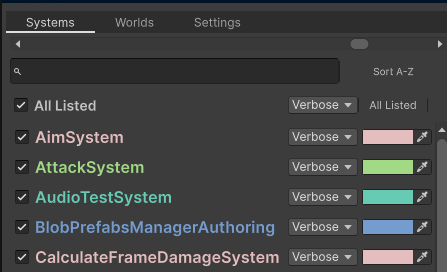
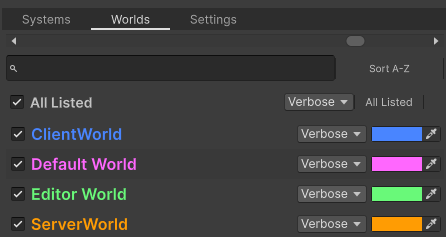
Table of Contents
- Quick Reference
- Overview
- Requirements
- Dependencies
- Installation
- Configuring Settings
- Using Logging in Code
- Known Limitations
- Troubleshooting
Quick Reference
using CyberEntt.Logging;
MonoBehaviour
Log.Info("Hello, Info Log Here.", this);
SystemBase
Log.Info("Hello, Info Log Here.");
ISystem
Log.Info("Hello, Info Log Here.", ref state);
Jobs
var job = new MyJob
{
    worldName = state.WorldUnmanaged.Name
};
[BurstCompile]
private partial struct MyJob : IJobEntity
{
[ReadOnly] public FixedString128Bytes worldName;
    private void Execute([EntityIndexInQuery] int sortKey, Entity entity)
    {
Log.Verbose($"Processing '{entity.Index}'", "MyJob", worldName);
Overview
The logging system provides centralized control over application logging.
It is designed to help developers:
- Identify logs faster.
- Enable or disable logging globally, stripping out logging code when disabled.
- Filter logs by severity level, stripping out code for logs below the configured minimum level.
- Keep debug output consistent across systems.
- Reduce noisy console output in production builds.
- Improve diagnostics during development and testing.
- Support structured logging across Unity runtime systems.
Requirements
Unity
| Requirement | Version |
|---|---|
| Unity Editor | 6.3.20 or newer recommended |
Dependencies
The Logging Settings system depends on the following project packages:
| Dependency | Purpose |
|---|---|
com.unity.burst |
Required for Burst-compatible ECS logging paths. |
com.unity.collections |
Required for fixed-string and native collection support used by ECS logging. |
com.unity.entities |
Required for ECS systems and deferred logging. |
com.unity.mathematics |
Required by the ECS/DOTS package set. |
com.unity.ext.nunit |
Used by package tests. |
com.unity.test-framework |
Used by package tests. |
Installation
1. Ensure the Logging Package Is Installed
Confirm that the logging package exists in the project package manifest or package manager.
Example package entry:
{ "dependencies": { "com.cyberentt.logging": "1.0.0" } }
2. Logging Settings Asset
The Package will create a Logging Settings asset that defines the active logging behavior.
You can find the asset at:
Assets/Resources/Logging/SettingsProperties.asset
This path is needed for Logging Package to load this asset at runtime in a final build to keep using configured settings.
You can also create one manually:
Right-click on folder and select Create > CyberEntity > Logging > SettingsProperties
You can also import the sample settings asset from Unity Package Manager:
- Open
Window > Package Manager. - Select
CyberEntity Logging. - Expand
Samples. - Import
SettingsProperties Asset Sample. - Move or copy the imported settings asset to:
Assets/Resources/Logging/
Configuring Settings
Go to
Window → CyberEntity → Logging
to Open CyberEntity Logging Management Window.
Global Logging Enabled
Controls whether logging is enabled at all.
| Value | Behavior |
|---|---|
| Enabled | Logging define symbols are added and allowed log calls are compiled. |
| Disabled | Logging define symbols are removed and logging calls are compiled out. |
From the editor code, the Settings inspector manages these symbols:
CYBER_ENTITY_LOGGING
Note: After changing logging settings, Unity will recompile scripts before the change takes effect.
Log Asserts
| Value | Behavior |
|---|---|
| Log Asserts | Enables or disables showing asserts in console or Player Log. |
Note: Asserts are enabled whenever global logging is enabled.
From the editor code, the Settings inspector manages these symbols:
CYBER_ENTITY_LOG_ASSERTS
Deferred Logging
| Value | Behavior |
|---|---|
| Deferred Log | Enables or disables deferred Logging. |
If not enabled but general logging is, it will log to the unity console normally without filtering capabilities.
Note (It should only be disabled in rare scenarios if there are missing logs after a crash.)
From the editor code, the Settings inspector manages these symbols:
CYBER_ENTITY_LOG_DEFERRED
Environment
| Value | Behavior |
|---|---|
| Environment | Configuration presets to easy/fast change settings with most common configurations. |
| Value | StackTrace configuration | Global Level |
|---|---|---|
| Custom | Custom configuration. | User Selected |
| Editor | Full for all levels. | Verbose |
| Development | Logs: None. Warnings and Errors: ScriptOnly. Exceptions and Asserts: Full. | Debug |
| QA | Logs: None. Warnings and Errors: ScriptOnly. Exceptions and Asserts: Full. | Info |
| Staging | Logs: None. Warnings and Errors: ScriptOnly. Exceptions and Asserts: Full. | Warning |
| Production | Logs, Warnings, and Errors: None. Exceptions: Full. Asserts: ScriptOnly. | Error |
If you want to change these presets, they are configured in ConfigureEnvironment() at SettingsProperties.cs
Level
Defines the lowest severity level that should be logged. Stripping out all code for logs below this level.
| Level | Description |
|---|---|
| Verbose | Detailed diagnostic information |
| Debug | Development-focused information |
| Info | General application information |
| Warning | Unexpected but recoverable issues |
| Error | Runtime errors that require attention |
From the editor code, the Settings inspector manages these symbols:
CYBER_ENTITY_LOG_VERBOSECYBER_ENTITY_LOG_DEBUGCYBER_ENTITY_LOG_INFOCYBER_ENTITY_LOG_WARNINGCYBER_ENTITY_LOG_ERROR
Note: After changing Level, Unity will recompile scripts before the change takes effect.
It can be changed at runtime without recompiling.
Example behavior:
If the minimum level is set to Warning, then only the following logs are emitted:
WarningErrorAssertsExceptions
The following logs are ignored:
VerboseDebugInfo
Stack Trace
Changing Stack Trace options in the Logging Settings asset updates Unity's Player stack trace settings for the selected project/build target.
These options correspond to Unity's StackTraceLogType values:
NoneScriptOnlyFull
Filters
When new worlds or systems/classes emit logs in the Editor, they are automatically added to the Settings asset and saved. This makes it easy to configure them later, but it also means the Settings asset may change while testing.
A Filter allows you to exclude logs from specific worlds or classes or systems by configuring the log level per world or class/system.
- Filters are autopopulated as soon as a log call is performed. Filter levels are minimum thresholds.
For example, if a system filter is set to
Warning, onlyWarningandErrorlogs from that system are shown.Verbose,Debug, andInfologs are hidden. - A random Color is assigned.
- Verbose is the default log level for new entries.
- You can Apply the level for each filter by selecting the level and clicking on the
Applybutton. (This will apply to all visible results of the search) (An empty search will Apply to all.) - You can Expand or Collapse all visible filters with
Expand VisibleandCollapse Visiblehelper buttons.
Filter by World
Filter by Class, SystemName, MonoBehaviour Name
If a system is very spammy in Verbose or Debug Level, then change it to Warning or Error.
There is a helper button to sort worlds and classes/systems alphabetically. Sort A-Z at the bottom.
Using Logging in Code
Use the centralized logging API instead of writing directly to Debug.Log, Debug.LogWarning, or Debug.LogError.
Important
Exception and Assert are managed-only and cannot be called from Burst-compiled code or jobs; use Error with the SystemState or FixedString overloads instead.
Exception and Assert bypass world/system filtering and the minimum level, and are controlled only by their define symbols.
Managed Examples (Burst Incompatible!)
Log.Verbose     ("Hello, Verbose Log Here.");
Log.Debug       ("Hello, Debug Log Here.");
Log.Info        ("Hello, Info Log Here.");
Log.Warning     ("Hello, Warning Log Here!");
Log.Error       ("Hello, Error Log Here!");
Log.Exception   (new Exception("My Exception"));
Log.Assert      (false, "Hi I am an Assert!");
Use this approach to log from MonoBehaviour or systems that do not use Burst.
Managed log calls can include a Unity object context.
Log.Warning("Missing reference", this);
Note: For managed logging calls, the class/system label is automatically inferred from the source file name.
Managed methods use [CallerFilePath] and set the class name to the file name:
className = Path.GetFileNameWithoutExtension(filePath);
You can override it manually:
Log.Info("Loaded player data", className: "SaveSystem");
Unmanaged Example. Passing SystemState as a parameter to auto resolve Class/System and World name.
Log.Verbose     ("Hello, Verbose Log Here.", ref state);
Log.Debug       ("Hello, Debug Log Here.", ref state);
Log.Info        ("Hello, Info Log Here.", ref state);
Log.Warning     ("Hello, Warning Log Here!", ref state);
Log.Error       ("Hello, Error Log Here!", ref state);
Use this approach to log from any system that has access to the SystemState.
Unmanaged Example. Manually passing System Name and World Name.
Log.Verbose     ("Hello, Verbose Log Here.",    "LogTestingSystem", "JobName");
Log.Debug       ("Hello, Debug Log Here.",      "LogTestingSystem", "JobName");
Log.Info        ("Hello, Info Log Here.",       "LogTestingSystem", "JobName");
Log.Warning     ("Hello, Warning Log Here!",    "LogTestingSystem", "JobName");
Log.Error       ("Hello, Error Log Here!",      "LogTestingSystem", "JobName");
Use this approach to log from Jobs.
Note: When logging from jobs, pass both the class/job name and world name if you need accurate world filtering/output.
Note: If the world name is omitted, the logger falls back to automatic world resolution.
Some examples:
Managed
public partial struct SoundFXSystem : ISystem
{
    public void OnCreate(ref SystemState state)
    {
        Log.Verbose("OnCreate");
        ...
    }

    public void OnUpdate(ref SystemState state)
    {
        ...
        foreach (var (playClip, enabledPlayClip, entity) in Query<PlayClip, EnabledRefRW<PlayClip>>()
                     .WithEntityAccess()
                     .WithAll<PlayClip>())
        {
            if (audioSource == null)
            {
                Log.Error($"Entity({entity.Index}) has no AudioSource component.");
                continue;
            }

            if (!map.Value.ContainsKey(playClip.value))
            {
                Log.Error($"AudioClip({playClip.value}) not found in AudioClipsAuthoring.");
                continue;
            }

            if (audioSource.isPlaying)
            {
                Log.Verbose($"Stopping '{audioSource.clip.name})' on AudioSource: {audioSource.name}");
                audioSource.Stop();
            }

            audioSource.clip = map.Value[playClip.value].Value;

            Log.Verbose($"Playing  '{playClip.value}' on AudioSource: {audioSource.name}");
            audioSource.Play();

            enabledPlayClip.ValueRW = false;
            Log.Verbose($"Disabling PlayClip Component on Entity({entity.Index})");
        }
    }
}
Burst Compatible
[BurstCompile]
public partial struct HealthSystem : ISystem
{
    [BurstCompile]
    public void OnUpdate(ref SystemState state)
    {
        var log = GetSingleton<DeferredLog>();

        foreach (...)
        {
            ...

            if (physicalDamage.ValueRO.Value > 0.0f)
            {
                log.Debug($"Total Damage Dealt on Entity({entity.Index}): {physicalDamage.ValueRO.Value}", ref state);
            }

            ...
        }
        ...
    }
}
Parallel Compatible
[BurstCompile]
public void OnUpdate(ref SystemState state)
{
    var job = new LogTestingJob
    {
        worldName = state.WorldUnmanaged.Name
    };
    var jobHandle = job.ScheduleParallel(state.Dependency);
    jobHandle.Complete();
}

[BurstCompile]
public partial struct LogTestingJob : IJobEntity
{
    [ReadOnly] public FixedString128Bytes worldName;

    private void Execute([EntityIndexInQuery] int sortKey, Entity entity,
        EnabledRefRW<Cooldown> cooldownEnabled, ref Cooldown cooldown)
    {
        Log.Verbose($"Processing Parallel sortKey:'{sortKey}', Entity:'{entity.Index}' with CooldownTime:'{cooldown.time}'", "LogTestingJob", worldName);
    }
}
Log Level Usage Intention
Choosing the correct log level helps engineers filter out unnecessary noise during a system outage or easily trace a bug during local development. Each log level serves a specific tactical purpose based on the urgency of the message and its target audience:
Log.Verbose("Often Spammy. As it is intended to be used to trace execution paths.");

Log.Debug("Developer-focused debug message.");

Log.Info("General runtime information.");

Log.Warning("Recoverable issue detected.");

Log.Error("Operation failed.");

Log.Exception(new Exception("Unhandled exception occurred."));;

Log.Assert(false, "Assumption of the entire program architecture was violated.");
Use the level that best matches the importance of the message.
Known Limitations
CyberEntity Logging version 1.0.0 includes the following known limitations:
- CyberEntity Logging complements Unity's built-in Console and does not replace it.
- The runtime settings asset must be available at
Assets/Resources/Logging/SettingsProperties.asset; automatic asset creation is Editor-only. - Deferred logging requires
DeferredLoggingSystemto be active in an ECS world. - Deferred logging is queued and flushed by an ECS system, so entries may appear with a slight delay and can be lost if the application crashes, exits, or the ECS world is disposed before flushing.
- When deferred logging is disabled, ECS/Burst overloads write directly to Unity logging and do not use CyberEntity world/system filtering.
Log.ExceptionandLog.Assertare managed-only and cannot be called from Burst-compiled code or jobs; useLog.Errorwith theSystemStateorFixedStringoverloads instead.Log.ExceptionandLog.Assertbypass world/system filtering and the global minimum level; they are controlled only by their define symbols, andLog.Assertadditionally depends on Unity'sUNITY_ASSERTIONSsymbol.- Filters are name-based; renaming worlds, classes, systems, source files, or manually supplied class names can create new filter entries.
- Stack trace configuration changes Unity Player stack trace settings for the selected build target and can affect logs outside this package.
- Compile-time stripping define symbols are applied per selected build target group; verify settings after switching target platforms.
- CyberEntity Logging does not provide cloud logging, remote telemetry, analytics, crash reporting, file logging, external log storage, persistent log history, or a searchable runtime log database.
- Runtime log visibility depends on Unity/player logging settings and may differ between Editor and builds.
- Console messages use Unity rich-text formatting; appearance may differ in player logs, external log viewers, or tools that do not render Unity rich text.
- Tested primarily in the Unity Editor on Windows.
Troubleshooting
No Logs Are Appearing
Check the following:
- Logging Settings asset exists.
- Logging Settings asset is located in the
Assets/Resourcesfolder. Verify Step 2. Import or Create the Logging Settings Asset - The minimum log level is not too restrictive.
- Enabled Checkmark is checked in Logging Settings.
- The logging system is initialized before logs are emitted.
Verbose or Debug Logs Are Missing
Possible causes:
- Minimum log level is set to
Info,Warning,Error. (Globally or for the specific class/system in a Filter)
Too Many Logs Are Appearing
Recommended fixes:
- Increase the minimum log level.
- Change noisy logs from
InfotoVerbosefor that specific System or class. - Remove logs from high-frequency update loops.
- Add category or system-level filtering.
Logs Are Expensive in Runtime Builds
Recommended optimizations:
- Disable verbose and debug logs in production.
- Avoid string interpolation in high-frequency code paths.
- Avoid logging every frame.
- Avoid using
Fullstack traces if not needed. - You can always disable the whole thing with one click to verify if logging is causing you issues. (It will strip away all logs code from the build)